> ## Documentation Index
> Fetch the complete documentation index at: https://docs.baserun.ai/llms.txt
> Use this file to discover all available pages before exploring further.
# Compare prompt versions
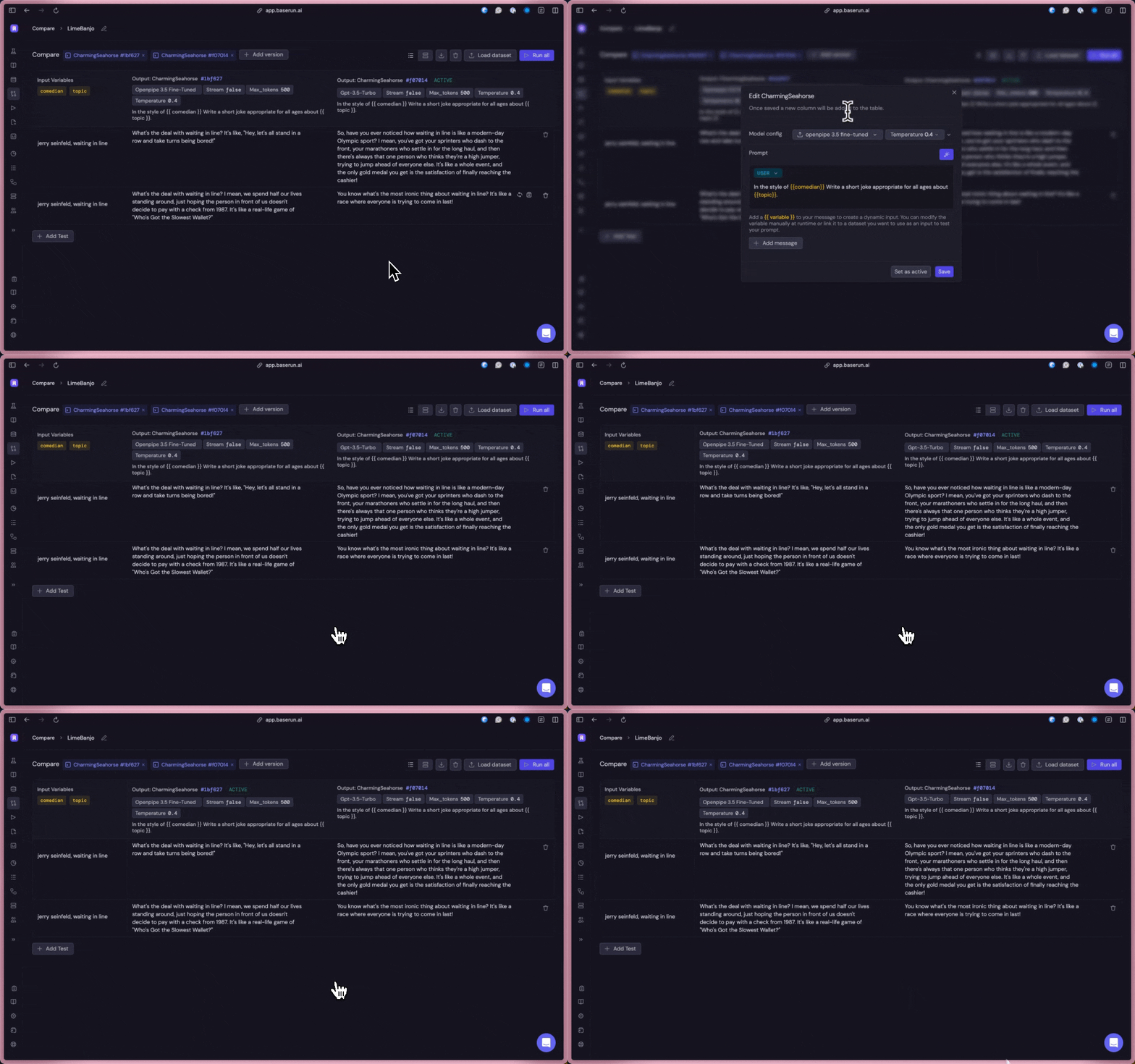
When crafting writing prompts, small changes in wording or configuration can lead to major differences in results. Managing and sharing different versions of these prompts, especially among team members, can be challenging. The Baserun Compare feature enables the entire team to compare prompt templates, models, and configurations side by side, facilitating easier iteration and performance evaluation.
### Use cases
* **Deciding which models or configurations:** Pick the best option by comparing their results side by side.
* **Decide which prompt version performs better:** Determine the most effective way of phrasing prompts by evaluating different versions.
* **Regression Tests/Backtesting:** Check if new results match what's expected to spot any regressions or deviations.
### Features
* Version cotrols
* Edit prompt versions & testing cases on the fly
* Side-by-side comparisons
* Bulk testing
* Share reports
* Export reports
### Instruction
In the latest version, we merged the "Compare" and "Playground" tabs into
one. You can now switch between the two modes through tabs. "New session"
will default to the "Playground" mode."New compare session" will default to
the "Compare" mode.
By default, Baserun pre-selects the previous version, but you can also
create a new version within the comparison report.
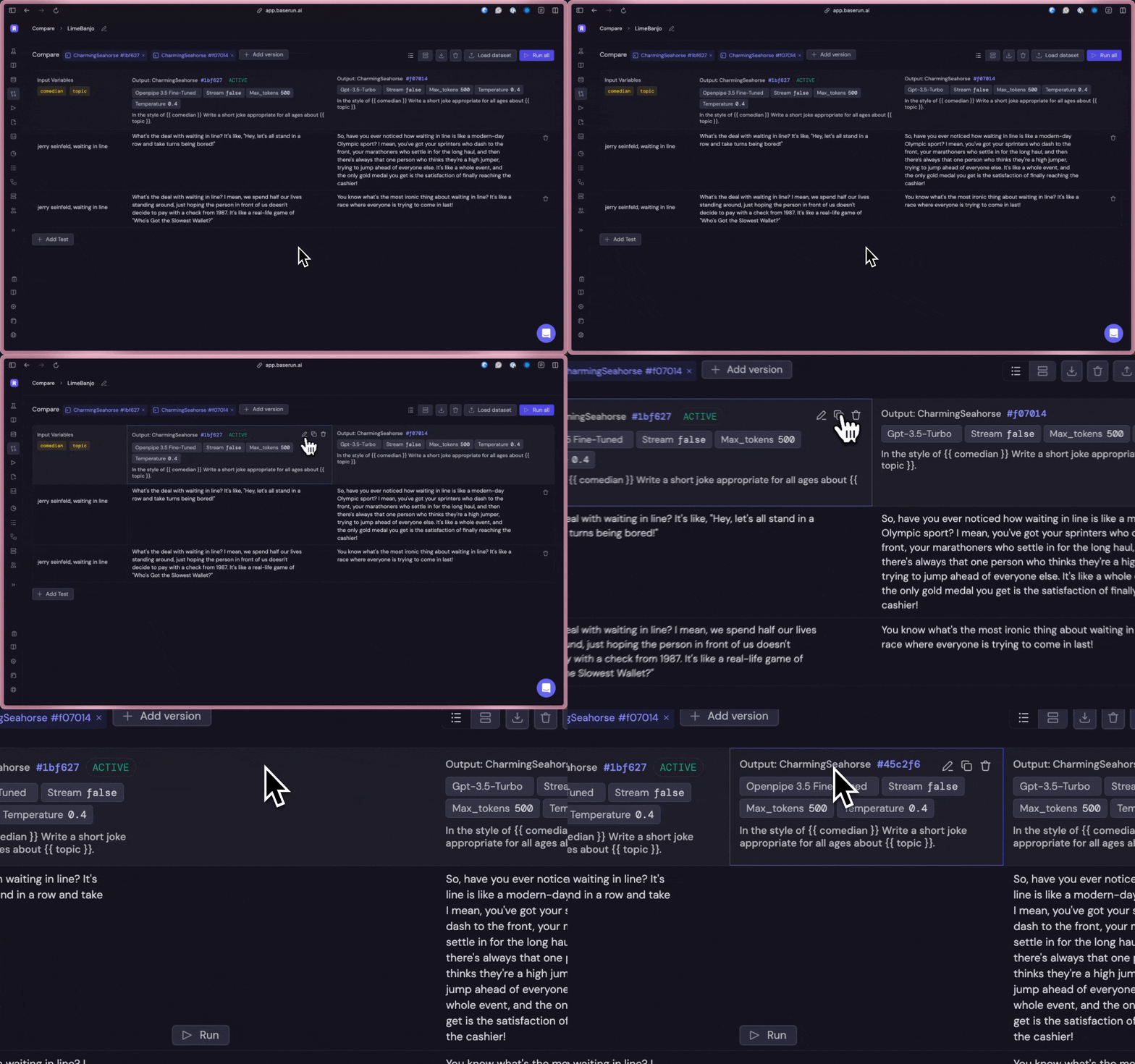 You can also edit the test inputs at any time and rerun the test.
After you have decided on the best-performing version, click on the prompt
card, and then click on the 'Save as the Active Version' button. This action
will set the selected version as the active version for the prompt.
You can also edit the test inputs at any time and rerun the test.
After you have decided on the best-performing version, click on the prompt
card, and then click on the 'Save as the Active Version' button. This action
will set the selected version as the active version for the prompt.