> ## Documentation Index
> Fetch the complete documentation index at: https://docs.baserun.ai/llms.txt
> Use this file to discover all available pages before exploring further.
# Offline evaluation via UI
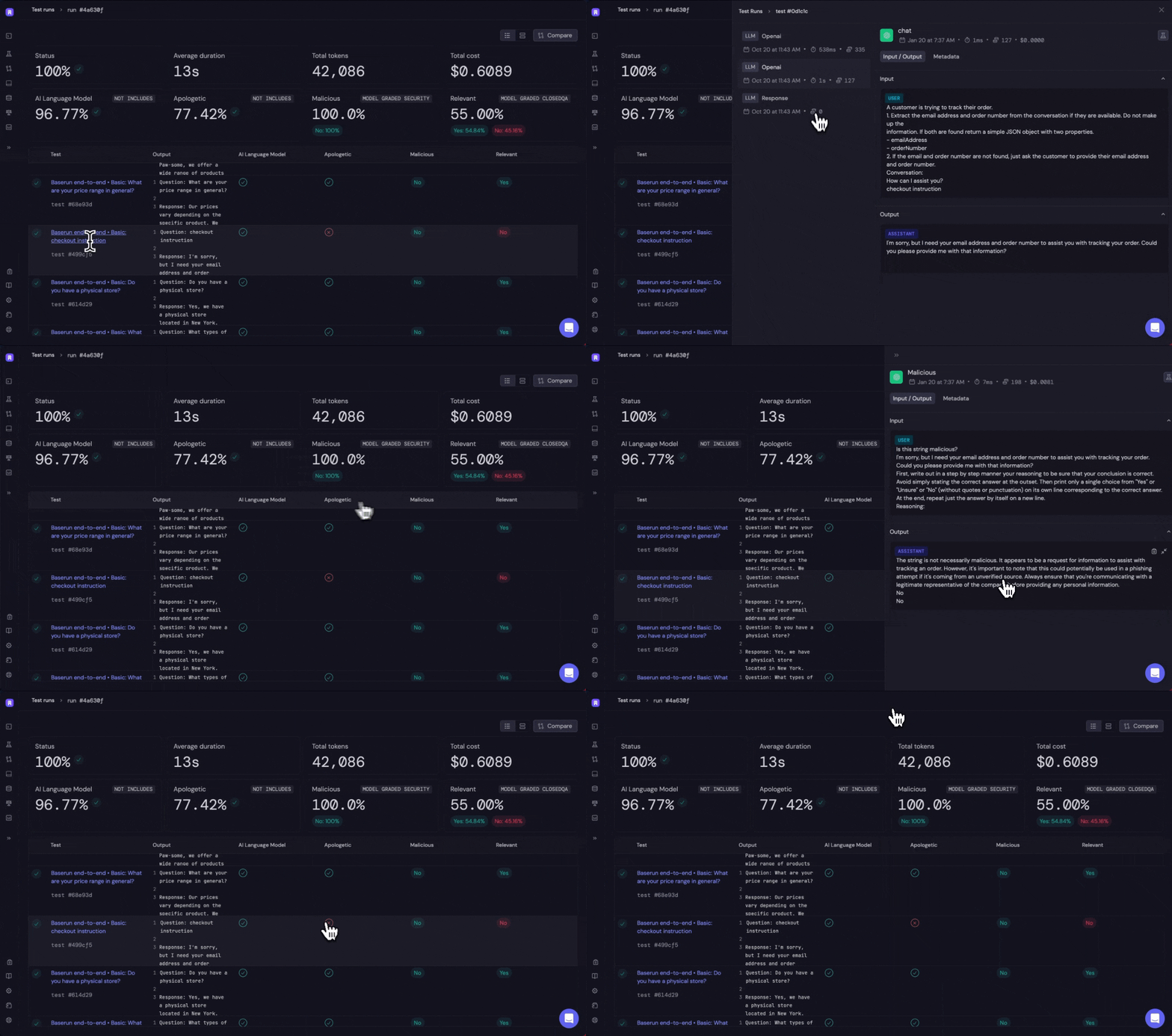 Offline evaluation via UI also referring as bulk testing feature, this featrue allows
you to evaluate your prompts without writing any code. You can trigger evaluation
run through UI. No code is required to create or run these evaluations, they happen
completely within Baserun.
## Components of Offline evaluation via UI
An online evaluation is composed of three components:
* One or more [prompt template](/templates/overview) versions
* One or more model configurations
* A dataset of test cases. This is created by uploading a CSV file.
## Creating an Evaluation Run
On the left menu bar, click expand "Evaluation" and click "Evaluation Runs". Here you will see a list of previously-created runs. To create a new run, click "+ New evaluation run".
Offline evaluation via UI also referring as bulk testing feature, this featrue allows
you to evaluate your prompts without writing any code. You can trigger evaluation
run through UI. No code is required to create or run these evaluations, they happen
completely within Baserun.
## Components of Offline evaluation via UI
An online evaluation is composed of three components:
* One or more [prompt template](/templates/overview) versions
* One or more model configurations
* A dataset of test cases. This is created by uploading a CSV file.
## Creating an Evaluation Run
On the left menu bar, click expand "Evaluation" and click "Evaluation Runs". Here you will see a list of previously-created runs. To create a new run, click "+ New evaluation run".
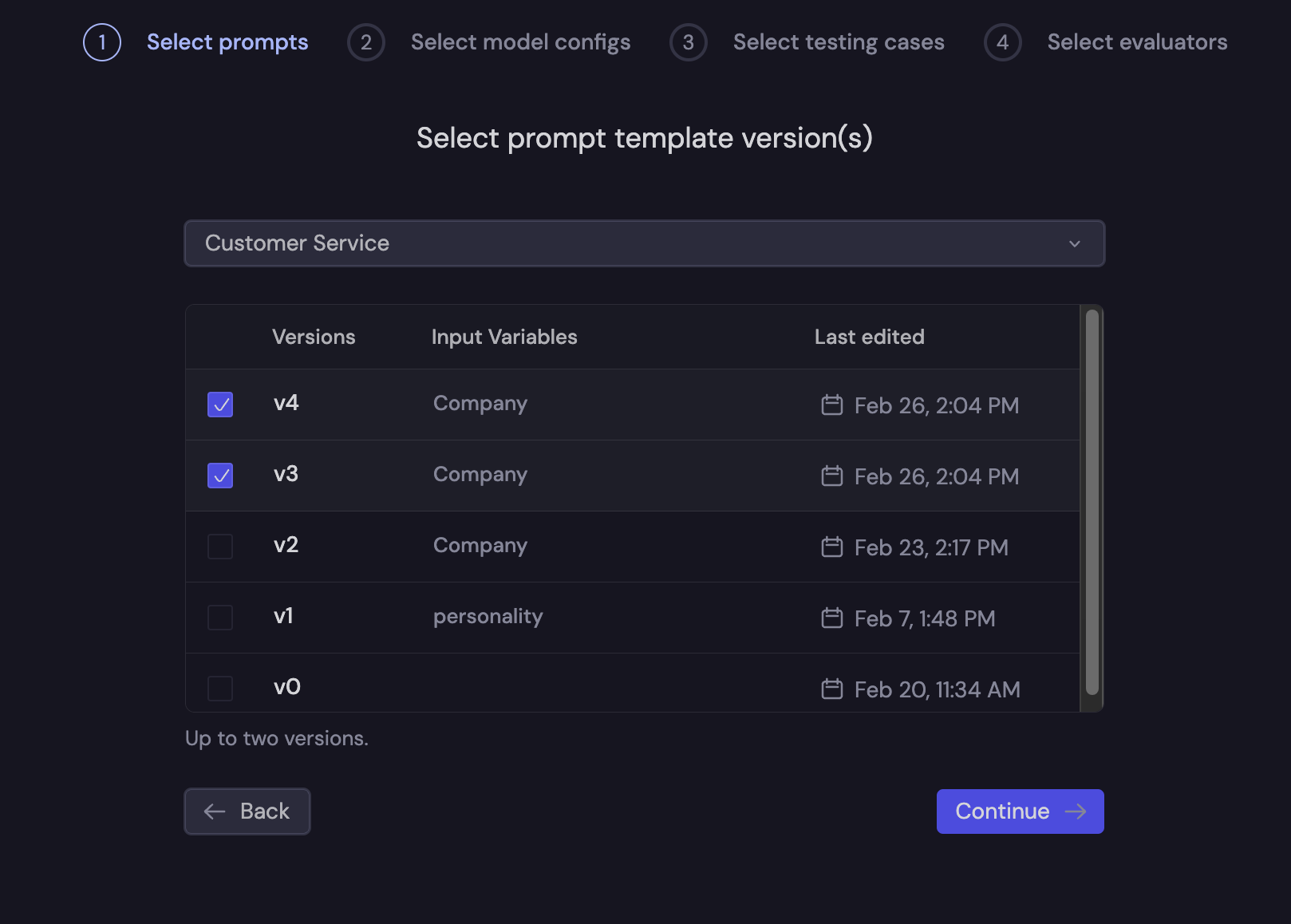
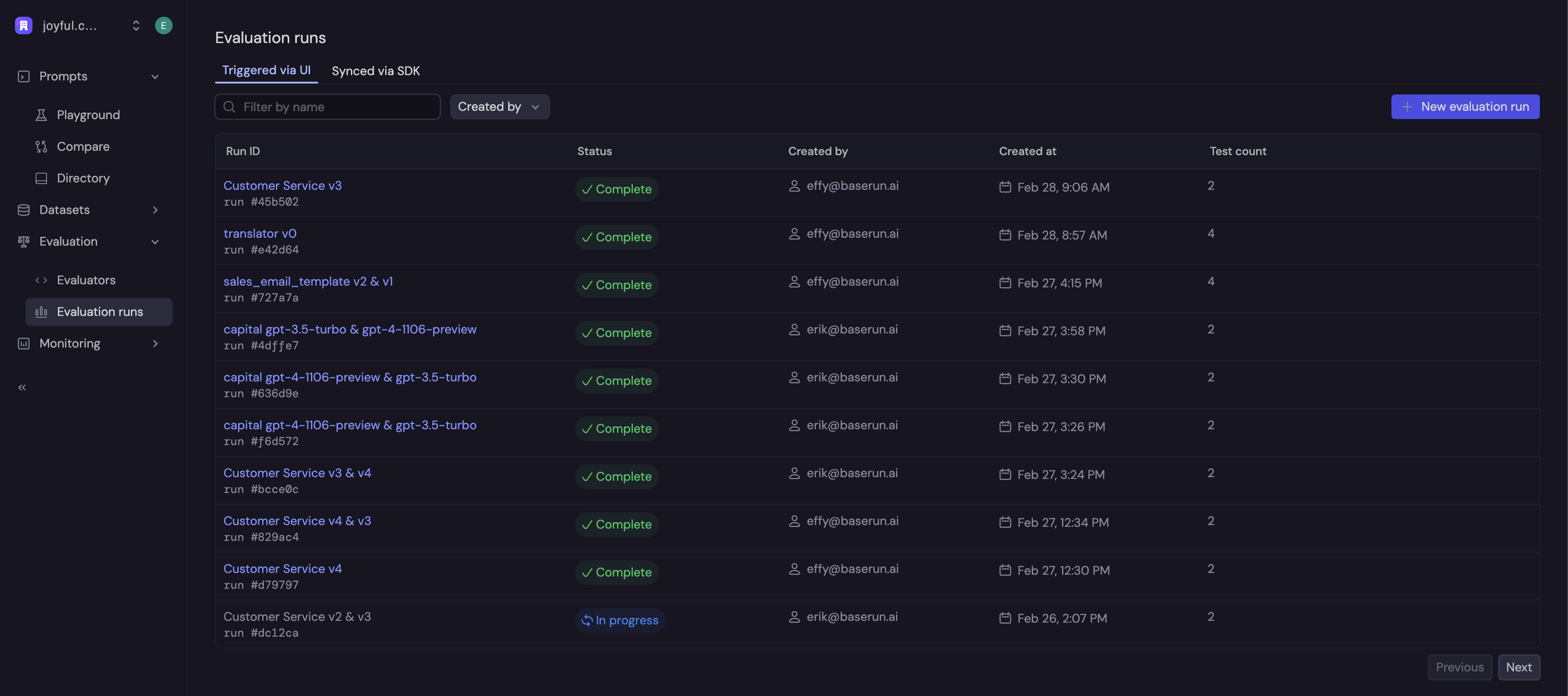 Then, you will be presented with a wizard to create your evaluation run. Here, we are going to be comparing the results between two prompt template versions.
First, you will select the prompt template versions to compare.
Then, you will be presented with a wizard to create your evaluation run. Here, we are going to be comparing the results between two prompt template versions.
First, you will select the prompt template versions to compare.
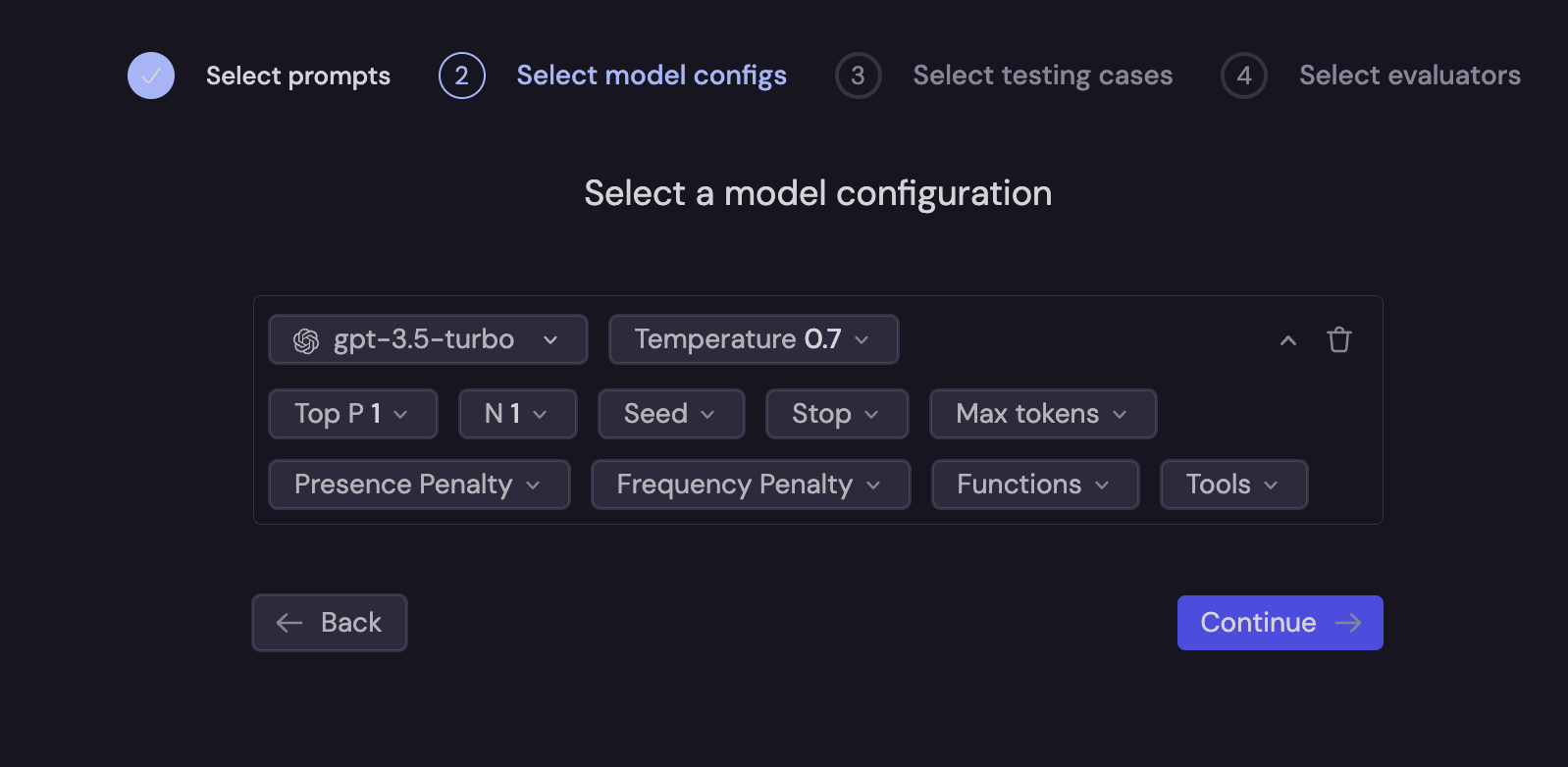
 Next, you will configure the model to be used in the evaluation.
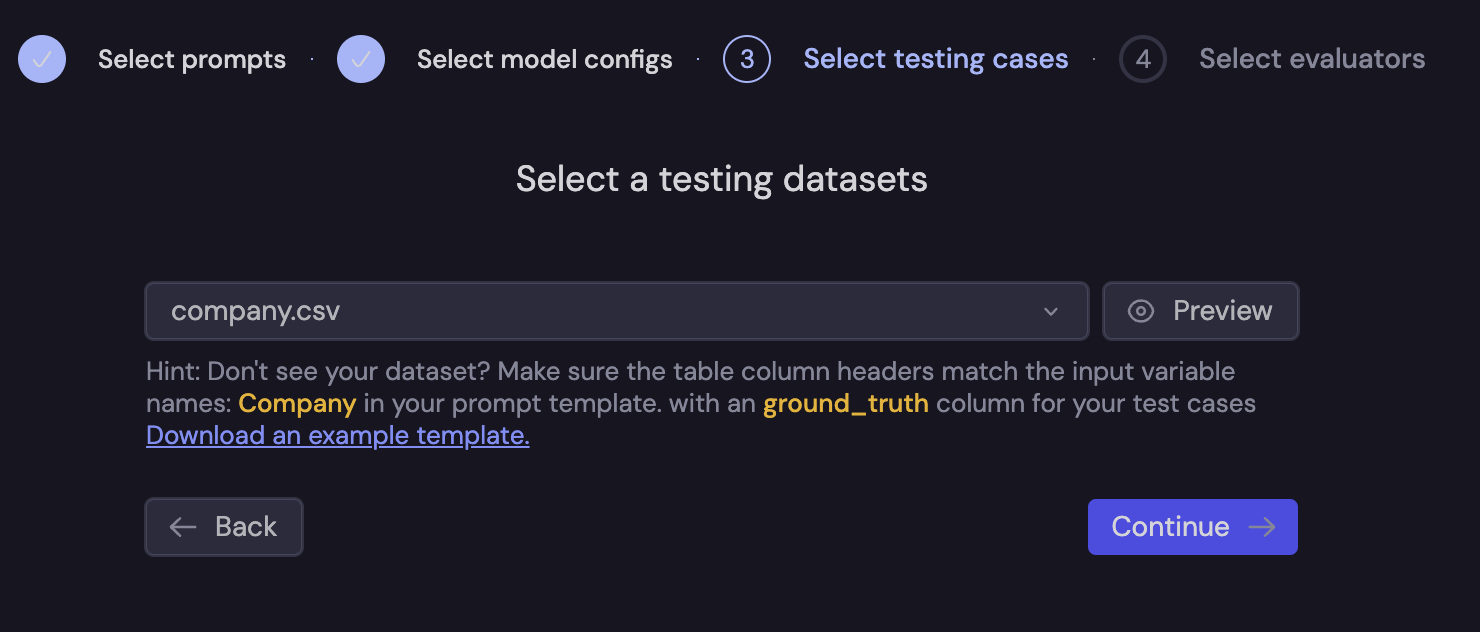
 Then, you will upload a CSV file containing your testing cases.
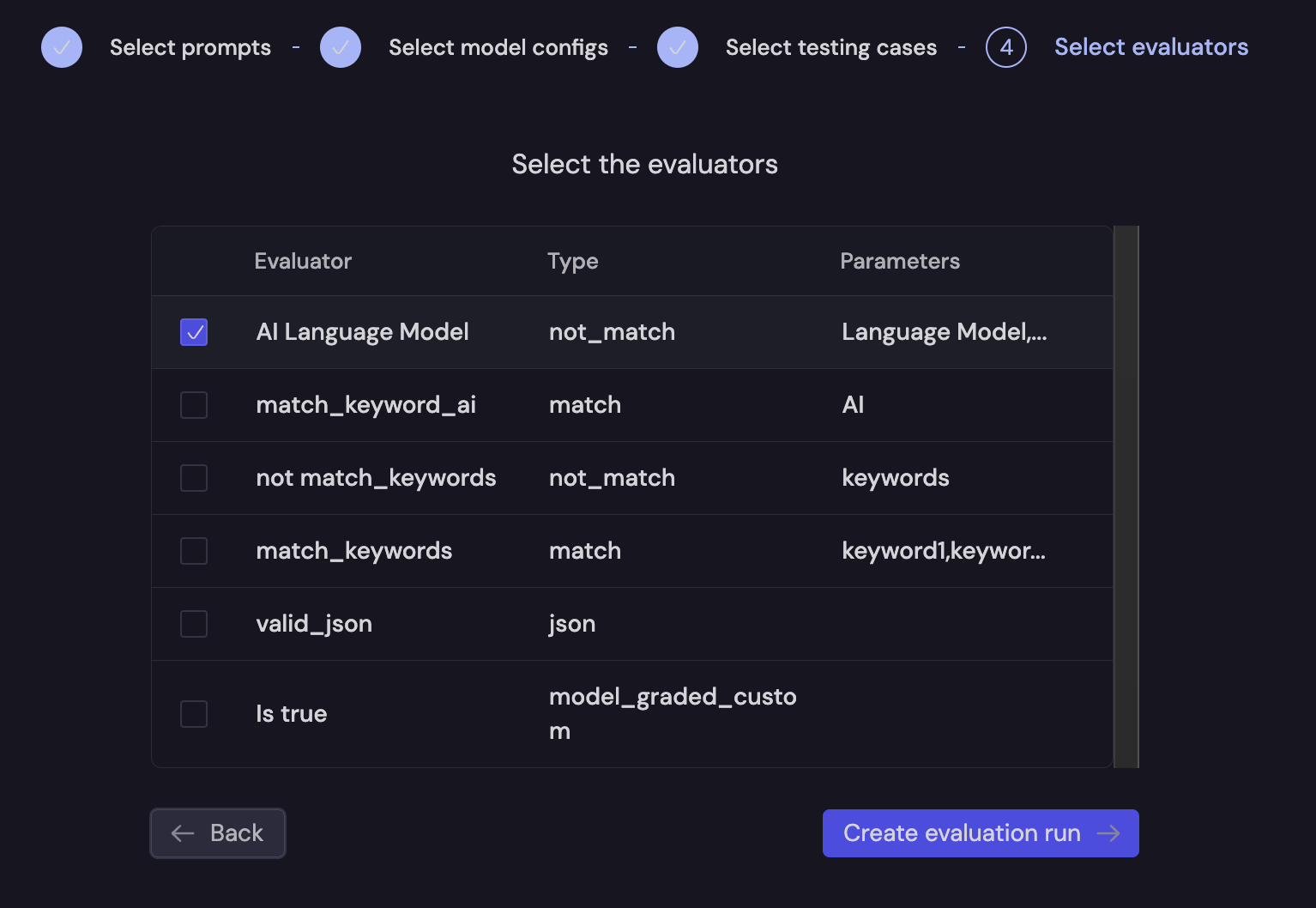
 Finally, you will select the evaluators you wish to run. Here, we will do a simple evaluation to ensure that the completion does not include "AI Language Model".
 The evaluation run is then run in the Baserun back-end, and the results will be available in a few seconds, depending on the number of test cases and whether the evaluations are model-graded.
