> ## Documentation Index
> Fetch the complete documentation index at: https://docs.baserun.ai/llms.txt
> Use this file to discover all available pages before exploring further.
# Human evaluators
 One major challenge in building products to automate more complex, nuanced tasks is that defining “good” and “bad” performance becomes a major bottleneck. While you may be able to define a few examples of “bad” behavior (e.g. AVs should try and avoid collisions, customer service chatbots should not reference stale information, medical chatbots should not misdiagnose patients), most of the interactions users will have with the system will be much more subjective.
Human evaluation enable AI teams to define their own evaluation criteria and collect feedback from human annotators.
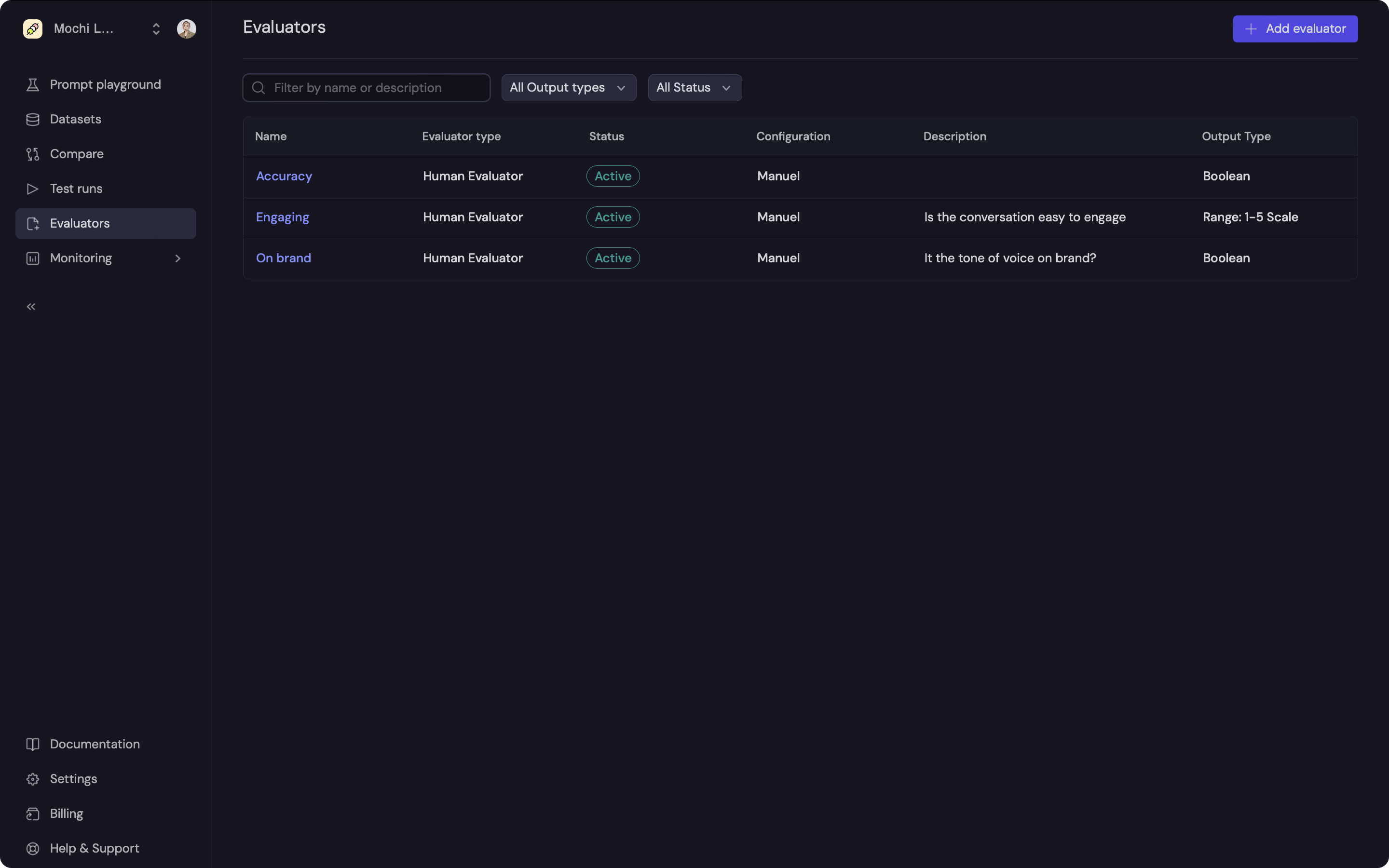
Human evaluator has 3 types:
* **Boolean**: True or False result.
* **Number**: 1-5 scale.
* **Enum**: Multiple options.
### Create a new evaluator
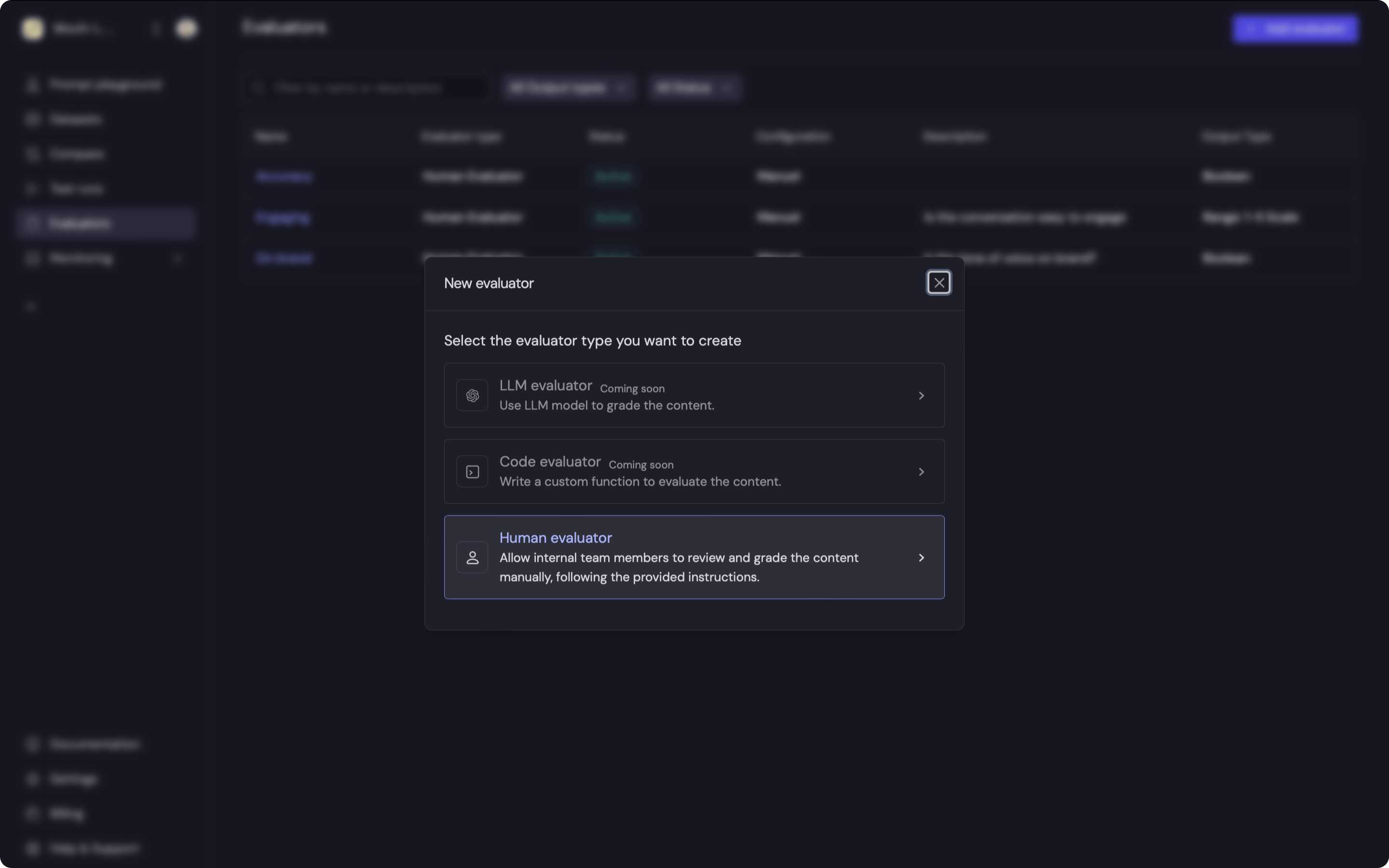
You will be prompted to select an evaluator type. Select the Human
Evaluator.
One major challenge in building products to automate more complex, nuanced tasks is that defining “good” and “bad” performance becomes a major bottleneck. While you may be able to define a few examples of “bad” behavior (e.g. AVs should try and avoid collisions, customer service chatbots should not reference stale information, medical chatbots should not misdiagnose patients), most of the interactions users will have with the system will be much more subjective.
Human evaluation enable AI teams to define their own evaluation criteria and collect feedback from human annotators.
Human evaluator has 3 types:
* **Boolean**: True or False result.
* **Number**: 1-5 scale.
* **Enum**: Multiple options.
### Create a new evaluator
You will be prompted to select an evaluator type. Select the Human
Evaluator.
 ### Apply a evaluator
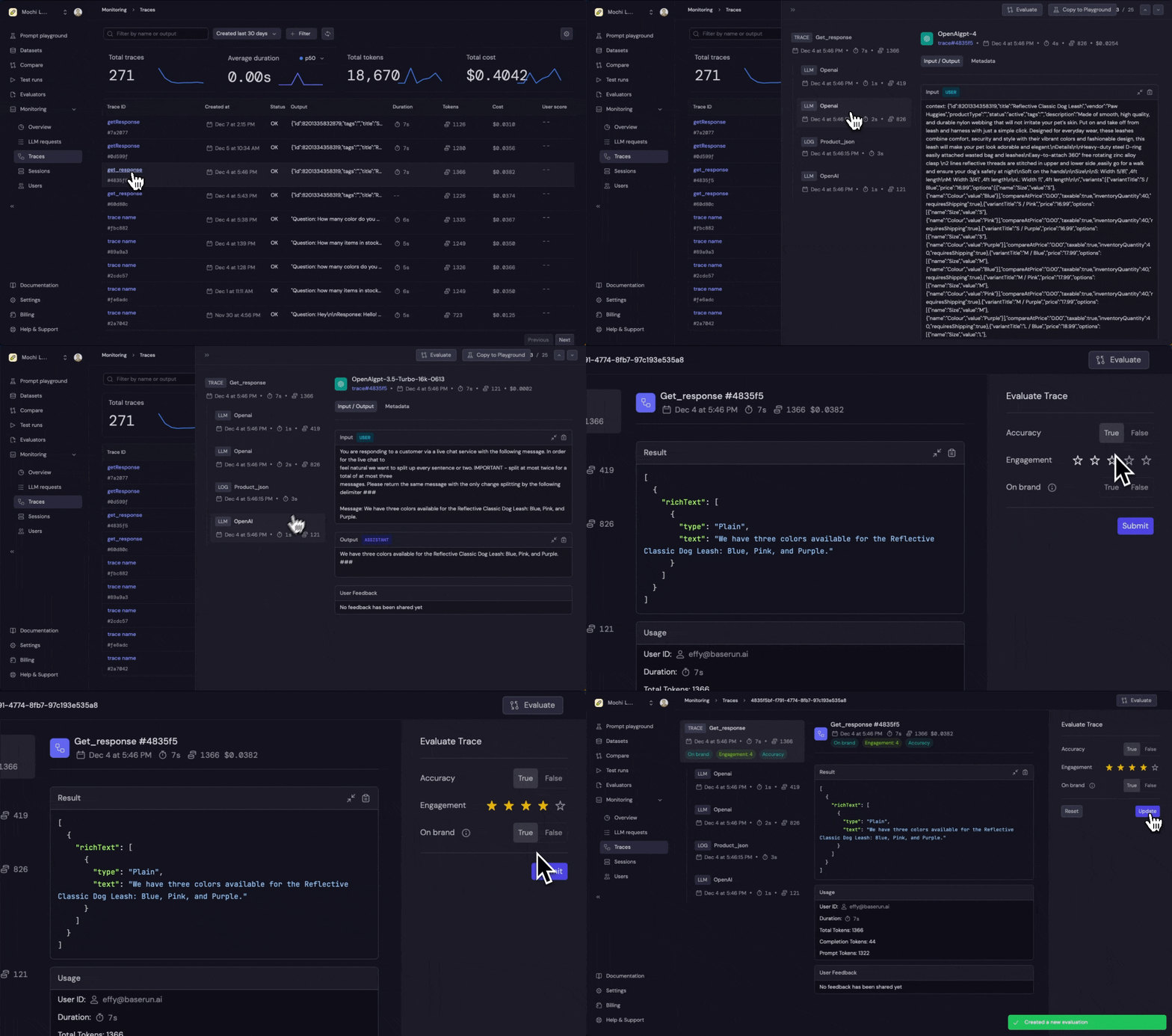
Navigate to a trace or a LLM request, click on the "Evaluate" button on the top right. Fill the form and click on the "Submit" button.
### View evaluation results
Now you can see the result inside the monitoring tabs and you can aggregate the results by the evaluation result.
### Apply a evaluator
Navigate to a trace or a LLM request, click on the "Evaluate" button on the top right. Fill the form and click on the "Submit" button.
### View evaluation results
Now you can see the result inside the monitoring tabs and you can aggregate the results by the evaluation result.